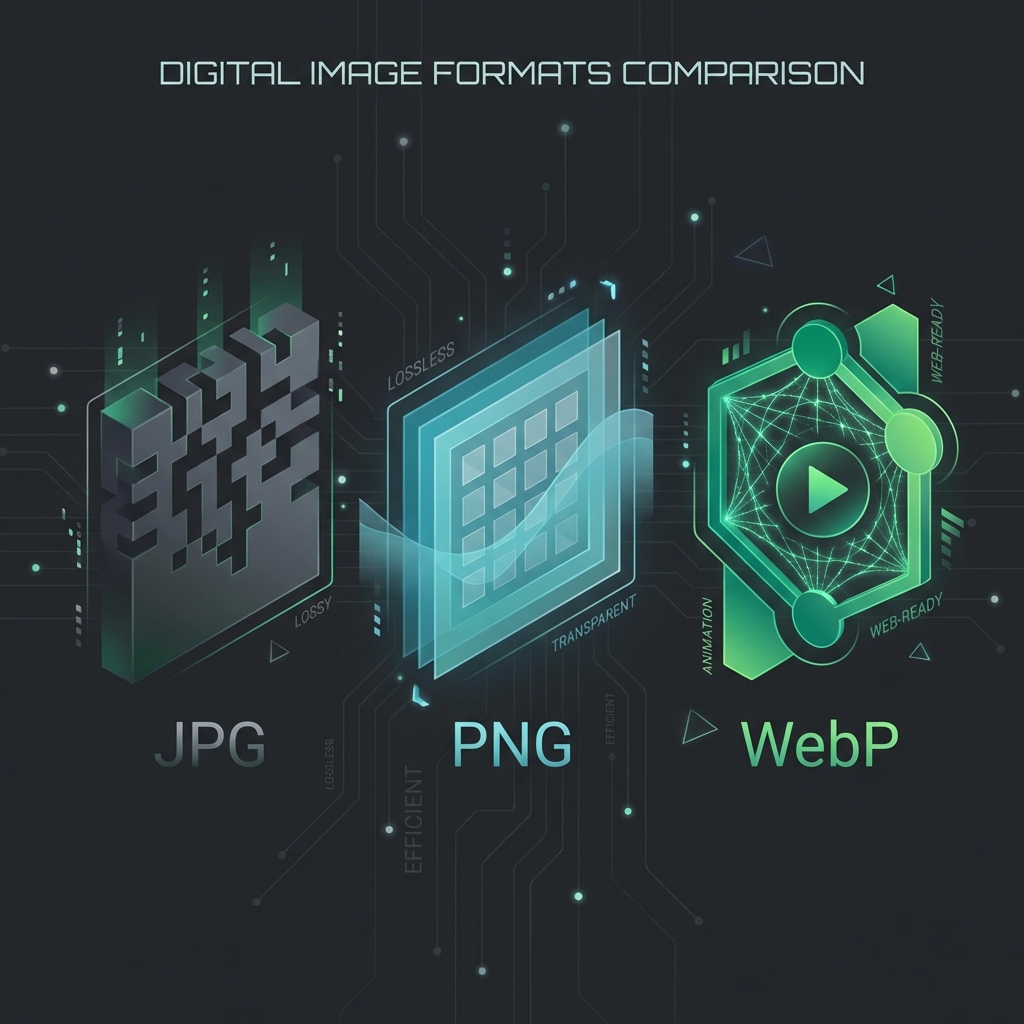
Digital images are not all created equal. Save a photo as a PNG, and it might be 5MB. Save it as a WebP, and it might be 200KB. Why?
Choosing the wrong format is the #1 cause of slow websites and full hard drives. Whether you are a web developer, a photographer, or just organizing your screenshots, understanding the "Big Three"—JPG, PNG, and WebP—is essential digital literacy.
1. JPG (Joint Photographic Experts Group)
The Old Reliable.
How it Works
JPG uses Lossy Compression. It cleverly analyzes the image and removes color information that the human eye is bad at seeing, while keeping brightness information (which we see well) intact. It divides the image into 8x8 blocks of pixels and simplifies the data within them (Discrete Cosine Transform).
Best Use Case
- Photography: Real-world photos with millions of colors, gradients, and soft transitions.
- Social Media: Instagram and Facebook native uploads.
Weaknesses
- No Transparency: You cannot have a transparent background. It will always be white (or black).
- Artifacting: If you compress line art, text, or screenshots with sharp edges, you will see "fuzzy" dots (artifacts) around the letters.
2. PNG (Portable Network Graphics)
The Precision Tool.
How it Works
PNG uses Lossless Compression (DEFLATE algorithm). It essentially looks for patterns (e.g., "this entire row is blue pixels") and codes them efficiently. When you open a PNG, it recreates the original data pixel-for-pixel perfectly.
Best Use Case
- Screenshots: Ideal for interface designs, text, and flat colors.
- Logos & Icons: Supports Alpha Transparency (transparent backgrounds).
- Archiving: When you want to edit the file later without degradation.
Weaknesses
- File Size: It is TERRIBLE for photographs. A detailed photo saved as PNG can be 5–10x larger than a JPG because it tries to save every single noise pixel perfectly.
3. WebP (Google Web Picture)
The Modern Standard.
Developed by Google, WebP is arguably the "Holy Grail" format. It supports both lossy and lossless compression, AND transparency.
The Magic
- Efficiency: WebP images are usually 26% smaller than PNGs and 25-34% smaller than JPGs at the same quality index (SSIM).
- Versatility: You can have a lossy photo (small size) with a transparent background (feature JPG lacks).
The Catch?
Until a few years ago, not all browsers supported it (looking at you, Safari). Today in 2026, support is effectively 100%. There is almost no reason not to use WebP for the web.
Summary Checklist: Which Format Should I Use?
| Scenario | Recommended Format | Why? |
|---|---|---|
| Photograph (People, Nature) | WebP (or JPG) | Smallest size for complex colors. |
| Screenshot of an App | PNG | Sharp text, no fuzzy artifacts. |
| Logo with transparent bg | WebP (or PNG) | Transparency support + efficiency. |
| Sending to Print | TIFF / High-res JPG | Printers often struggle with WebP. |
| Newsletter / Email | JPG | Maximum compatibility with old email clients. |
How to Convert Between Formats with Outilio
Stuck with a heavy PNG photo? Or a WebP file that Photoshop won't open?
You can convert them instantly—and privately—using our Image Converter.
- Select Tools: Go to Image Converter.
- Upload: Drop your files. (Remember: They process locally, no privacy risk).
- Choose Output: Select
to JPG,to PNG, orto WebP. - Convert: Download the optimized file.
Pro Tip: If you run a website, bulk convert your assets to WebP. It's the single easiest way to improve your Lighthouse Performance score.
Optimize your digital assets today with Outilio Tools.